Wednesday, 8 April 2020

Step by Step – Create a very simple PowerApps Custom Component to show the GUID of the record

Below is the quick step by step guide to get started (sort of Hello World example) 
  • Install NPM (that comes with Node.js)
  • Install Visual Studio 2017 or later or Download .NET Core 2.2 along with Visual Studio Code.
  • Create the new folder for the project, and in Developer Command Prompt for VS 2017 navigate to the folder and run the below command to create a new component project
pac pcf init
– -namespace <namespace for the component>
– -name <name of the component>
– -template <component type>

It adds the following files in the folder.

  • Next run npm install command to install the project dependencies.
  • Open the ControlManifest.Input.xml file created inside the folder created with the control’s name.
  • Here we have opened it in Visual Studio Code, for this simple example purpose let us not change the default values.
  • Open the index.ts which wherein we’d be writing code for our custom control
  • Add the following line of code to add a label control that will display that GUID of the record.
  • Run npm run build command to build the control
  • To test the control run npm start command
*Use ctrl + c è to terminate the job.
  • Create a new folder to hold the solution
  • Run the below command to define the publisher name and prefix and initialize the solution files creation
pac solution init --publisher-name [publisher name] --publisher-prefix [publisher prefix]
 pac solution init --publisher-name PCFControls --publisher-prefix tst


  • Run the below command to add reference to our custom control in the solution
pac solution add-reference – -path [path to pcfproj file]
i.e. reference of the below path.
  • This creates the file with extension cdsproj
  • To generate Zip File run the below command in the Developer Command Prompt for Visual Studio 2017
    • MSBUILD /t:restore
    • MSBUILD
  • This adds the Solution zip in the bin Debug folder.
  • To get both managed and unmanaged solution, update the cdsproj file
  • We can see both managed and unmanaged solution created.
  • Import the solution in Dynamics 365 CE and open any of the entity’s form. Here we have created a new text field named GUID in the Contact form and have set our custom control for that field.
For reference à
  • After publishing the changes, we can see the GUID being displayed in the form.
  • To update the control, change the version for it in the ControlManifest.Input.xml
Followed by
  • npm run build
  • msbuild
  • Importing the new solution file generated

In a nutshell below are the high-level steps à

1. Install npm
2. Install PowerApps CLI
3. Install Visual Studio 2017 or later
4. Create a new folder for the project.
5. Navigate to the folder in Developer Command Prompt and run the following command to create the component project

PAC PCF INIT –NAMESPACE <COMPONENT NAMESPACE> –NAME <COMPONENT NAME> –TEMPLATE <COMPONENT TYPE>

6. Install the project dependencies using below command

NPM -INSTALL

7. Update ControlManifest.Input.xml
8. Update index.ts
9. Build the project

NPM RUN BUILD

10. Use the below command to test the component

NPM START

11. Create a folder for holding the solution zip and related files. Navigate to that folder and run the below command.

PAC SOLUTION INIT – -PUBLISHERNAME [PUBLISHER NAME] – -CUSTOMIZATIONPREFIX [PUBLISHER PREFIX]

12. Add reference of the custom component in the solution

PAC SOLUTION ADD-REFERENCE – -PATH [PATH TO PCFPROJ FILE]

3
13. To create the Solution Zip File

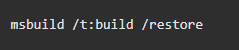
MSBUILD /T:RESTORE

MSBUILD
4
14. Import the solution file and use it inside Dynamics 365 CE.

lastly – Don’t forget to check the wonderful PCF Gallery

https://pcf.gallery/

Hope it helps..

Thursday, 16 January 2020

Deploying the Window Services using Power shell

Log on as a service rights

To establish Log on as a service rights for a service user account:
  1. Open the Local Security Policy editor by running secpol.msc.
  2. Expand the Local Policies node and select User Rights Assignment.
  3. Open the Log on as a service policy.
  4. Select Add User or Group.
  5. Provide the object name (user account) using either of the following approaches:
    1. Type the user account ({DOMAIN OR COMPUTER NAME\USER}) in the object name field and select OK to add the user to the policy.
    2. Select Advanced. Select Find Now. Select the user account from the list. Select OK. Select OK again to add the user to the policy.
  6. Select OK or Apply to accept the changes.

Create and manage the Windows Service

Create a service

Use PowerShell commands to register a service. From an administrative PowerShell 6 command shell, execute the following commands:
$acl = Get-Acl "{EXE PATH}"
$aclRuleArgs = {DOMAIN OR COMPUTER NAME\USER}, "Read,Write,ReadAndExecute", "ContainerInherit,ObjectInherit", "None", "Allow"
$accessRule = New-Object System.Security.AccessControl.FileSystemAccessRule($aclRuleArgs)
$acl.SetAccessRule($accessRule)
$acl | Set-Acl "{EXE PATH}"

New-Service -Name {SERVICE NAME} -BinaryPathName {EXE FILE PATH} -Credential {DOMAIN OR COMPUTER NAME\USER} -Description "{DESCRIPTION}" -DisplayName "{DISPLAY NAME}" -StartupType Automatic
  • {EXE PATH} – Path to the app's folder on the host (for example, d:\myservice). Don't include the app's executable in the path. A trailing slash isn't required.
  • {DOMAIN OR COMPUTER NAME\USER} – Service user account (for example, Contoso\ServiceUser).
  • {SERVICE NAME} – Service name (for example, MyService).
  • {EXE FILE PATH} – The app's executable path (for example, d:\myservice\myservice.exe). Include the executable's file name with extension.
  • {DESCRIPTION} – Service description (for example, My sample service).
  • {DISPLAY NAME} – Service display name (for example, My Service).

Start a service

Start a service with the following PowerShell 6 command:
Start-Service -Name {SERVICE NAME}
The command takes a few seconds to start the service.

Determine a service's status

To check the status of a service, use the following PowerShell 6 command:
Get-Service -Name {SERVICE NAME}
The status is reported as one of the following values:
  • Starting
  • Running
  • Stopping
  • Stopped

Stop a service

Stop a service with the following Powershell 6 command:
Stop-Service -Name {SERVICE NAME}

Remove a service

After a short delay to stop a service, remove a service with the following Powershell 6 command:
Remove-Service -Name {SERVICE NAME}

sc.exe delete {SERVICE NAME}

Thursday, 12 December 2019

Call Global Custom Action using JavaScript in Dynamics 365


Sometimes there are scenarios you need to create Global Actions where you don't specify an entity in particularly. When you create such global action and if you need to call that action from your JavaScript code or on Button Click. Here is the way to do that.

Example of calling Global Action Without Parameters:

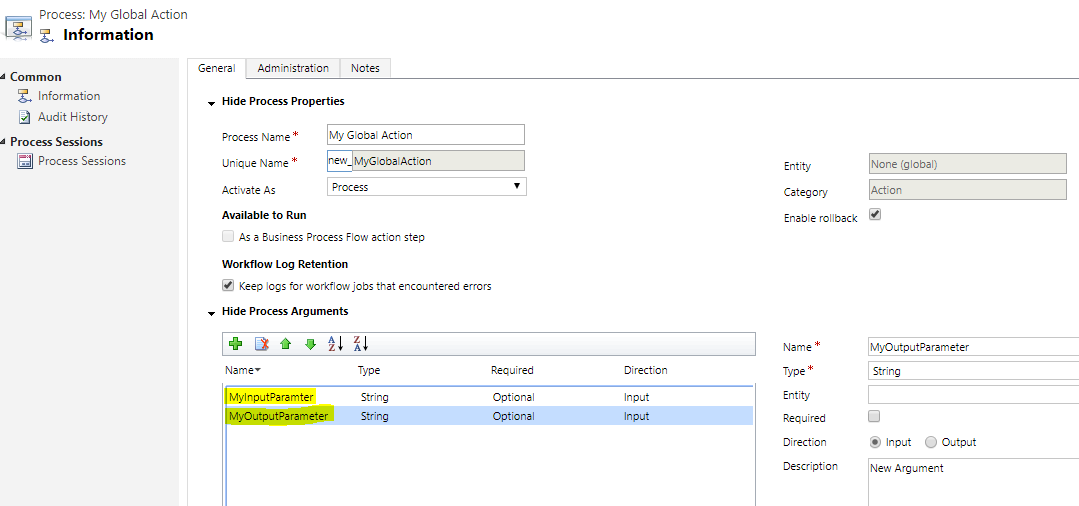
Create a Global Action


Add Steps and Copy Action Unique Name (My Custom Action)


JavaScript to call Action

//Execute the created global action using Web API.
function CallGlobalCustomAction() {
    
    //get the current organization name
    var serverURL = Xrm.Page.context.getClientUrl();

    //query to send the request to the global Action 
    var actionName = "new_MyCustomAction"; // Global Action Unique Name

    //Pass the input parameters of action
    var data = {};

    //Create the HttpRequestObject to send WEB API Request 
    var req = new XMLHttpRequest();
    //Post the WEB API Request 
    req.open("POST", serverURL + "/api/data/v8.0/" + actionName, true);
    req.setRequestHeader("Accept", "application/json");
    req.setRequestHeader("Content-Type", "application/json; charset=utf-8");
    req.setRequestHeader("OData-MaxVersion", "4.0");
    req.setRequestHeader("OData-Version", "4.0");

    req.onreadystatechange = function () {
        if (this.readyState == 4 /* complete */)
        {
            req.onreadystatechange = null;
           
            if (this.status == 200 || this.status == 204)
            {
                alert("Action Executed Successfully...");
               
            }
            else
            {
                var error = JSON.parse(this.response).error;
                alert("Error in Action: "+error.message);
            }
        }
    };
    //Execute request passing the input parameter of the action 
    req.send(window.JSON.stringify(data));
}


Example of calling Global Action with Parameters:


JavaScript to call Action

//Execute the created global action using Web API.
function CallGlobalCustomAction() {
    
    //get the current organization name
    var serverURL = Xrm.Page.context.getClientUrl();

    //query to send the request to the global Action 
    var actionName = "new_MyCustomAction"; // Global Action Unique Name

    //set the current loggedin userid in to _inputParameter of the 
    var InputParameterValue = Xrm.Page.context.getUserId();
 
    //Pass the input parameters of action
    var data = {
    "MyInputParameter": InputParameterValue
    };
//Create the HttpRequestObject to send WEB API Request var req = new XMLHttpRequest(); //Post the WEB API Request req.open("POST", serverURL + "/api/data/v8.0/" + actionName, true); req.setRequestHeader("Accept", "application/json"); req.setRequestHeader("Content-Type", "application/json; charset=utf-8"); req.setRequestHeader("OData-MaxVersion", "4.0"); req.setRequestHeader("OData-Version", "4.0"); req.onreadystatechange = function () { if (this.readyState == 4 /* complete */) { req.onreadystatechange = null; if (this.status == 200 || this.status == 204) { alert("Action Executed Successfully...");

               //You can get the output parameter of the action with name as given below
               result = JSON.parse(this.response);
               alert(result.MyOutputParameter);
} else { var error = JSON.parse(this.response).error; alert("Error in Action: "+error.message); } } }; //Execute request passing the input parameter of the action req.send(window.JSON.stringify(data)); }


Hide New... button on lookup controls in model-driven apps

  The 'New ...' button is shown upon opening the lookup search dialog whenever the logged in user has at least user create privileg...